Instructions for how to send an email from a different email address you have access to within Outlook for Windows.
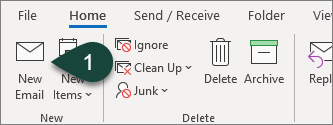
- Open a New Email in Microsoft Outlook.
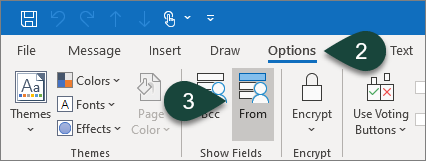
- Select the Options Tab.
- Select From in the Show Fields section. This will add the From field to your email.
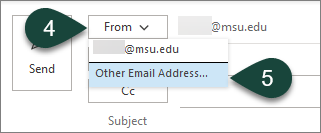
- Select the From Drop-Down Menu above the To field.
- Select Other Email Address.
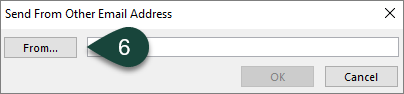
- Select From.
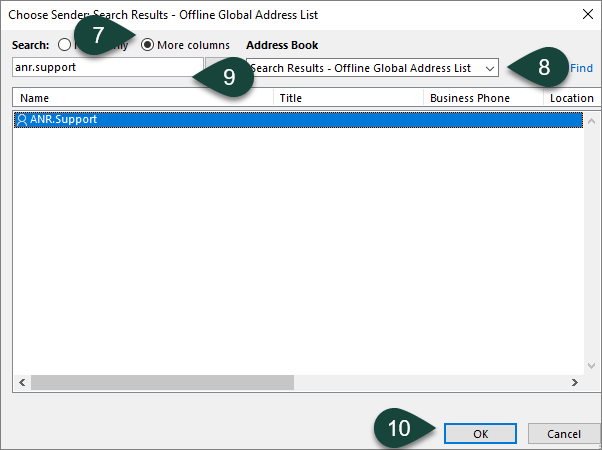
- Select More Columns.
- Ensure the Global Address Book is selected in the drop-down menu.
- Search for the Email Address you wish to send from.
NOTE: You will need to ensure you have access to send from that email address. - Select Ok.
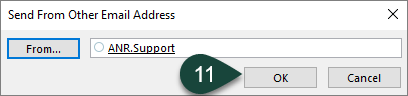
- Select Ok.
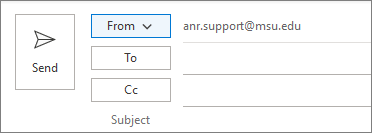
- Continue Entering the rest of your email.
Was this article helpful?
That’s Great!
Thank you for your feedback
Sorry! We couldn't be helpful
Thank you for your feedback
Feedback sent
We appreciate your effort and will try to fix the article